

Blur screenshots online. Redact private text.
A free screenshot blur tool and redactor in your browser. Blur part of an image, black out sensitive text, crop, and add arrows in your own colors. Download the edited PNG without uploading your screenshot.
Drop a screenshot here
Or paste with Ctrl+V / ⌘V
PNG, JPEG or WebP · Up to 25 MB
You choose what to hide. This tool does not detect secrets automatically. Check the exported file before sharing.
How to blur part of a screenshot
- Paste, drop or choose a PNG, JPEG or WebP screenshot.
- Select Blur and drag a rectangle over the area you want to soften.
- Adjust Blur strength above the image. Select any blur in Edits to change it later.
- Download the PNG or copy the edited image. Check the result before sharing.
Blur a distracting panel in a tutorial, soften the background of a support screenshot, or draw attention to one part of a conversation. Keep passwords, email addresses and other private text behind an opaque redaction.
Use the free screenshot blur tool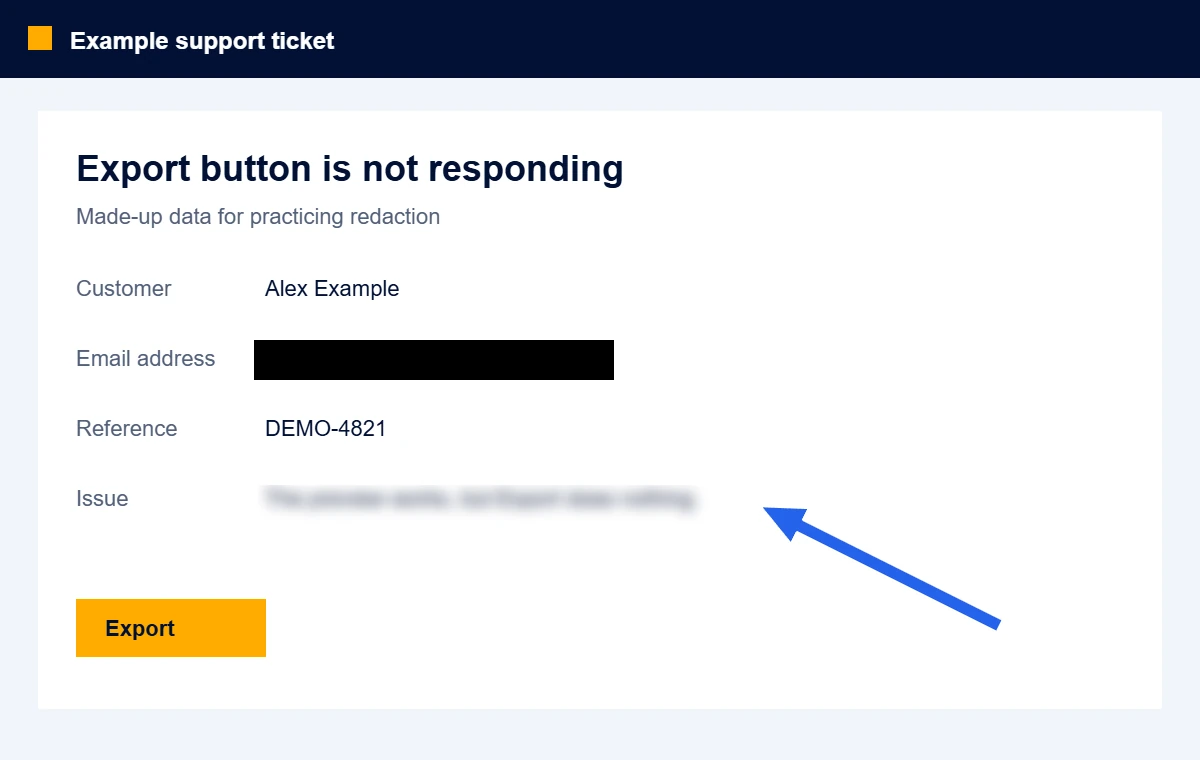
Keep the context. Remove the private details.
Paste or choose a screenshot
Use Ctrl+V or ⌘V, drop an image into the workspace, or choose a PNG, JPEG or WebP file. Try the example first if you want to practice.
Cover private information
Select Redact and drag a box over each sensitive area. Cover the whole value with a margin. Use Crop to remove unnecessary borders, tabs or sidebars.
Blur distractions and add instructions
Choose Blur to soften a distracting area and adjust its strength. Add colored arrows or numbered steps to explain what matters. Use opaque redaction for private text.
Download and inspect the PNG
Open the exported PNG and check the entire image before sharing. The export contains flattened edits, not removable layers. Keep the original file private.
Redaction you can inspect
The editor draws your result into a new image. Black rectangles replace the pixels you select. Cropped-out areas stay outside the exported canvas. The PNG export keeps the image data and removes metadata chunks, including source EXIF and text fields.
Use the example to practice: cover the email address, crop an edge, and export. Reopen the downloaded PNG here to inspect the result as a new image. Removing an edit is possible in the original editing session; the downloaded PNG does not contain that history.
A cover is only as good as its coverage
Redact the whole value, including antialiased edges and repeated copies. Check whether nearby names, avatars, URLs or the length of a black box still reveal something you meant to withhold.
Keep source images and recovery copies private. If a credential has already been shared, covering a later screenshot does not revoke it.
Read the screenshot privacy checklist →Blur, redact or crop your screenshot?
| Method | Useful for | What to check |
|---|---|---|
| Opaque redaction | Removing a private value while keeping the surrounding explanation. | Cover every character and export a flattened copy. |
| Crop | Removing a sidebar, browser tab strip or unrelated conversation. | Check the new edges and repeated details inside the crop. |
| Adjustable blur | Softening a selected area while keeping the screenshot layout. | Choose Blur strength in the free tool. Use Redact for passwords or private text. |
Why the distinction matters: Bishop Fox’s Unredacter research demonstrates recovery of pixelated text under some conditions. For the desktop app’s separate Blur controls, see the Maxisnap blur guide.
Free screenshot blur and redaction: questions answered
How do I blur part of a screenshot online for free?
Paste or choose your screenshot in the free tool above, select Blur, and drag a box over the area. Adjust Blur strength, then download the PNG. Only the selected area is blurred. Use Redact instead when you need to remove private text.
Is this screenshot blur tool really free?
Yes. Blur, redaction, crop, colored arrows, numbered steps, PNG download and clipboard export are free. There is no signup, watermark or paid export. The optional Maxisnap desktop app has separate free and paid plans.
Can I blur a screenshot on Windows, Mac, iPhone or Android?
Use a modern browser on your device, choose a saved screenshot, and draw the blur area with a mouse or touch. On Windows or Mac you can also paste an image with Ctrl+V or ⌘V. Download PNG works when your browser does not support copying an image to the clipboard.
How do I change the blur strength or arrow color?
Select the blur, arrow or number in the Edits list. Use the controls above the image to change blur strength, annotation color, arrow thickness, number size or outline. Changes can be undone before export.
How do I black out text in a screenshot?
Paste or open the screenshot, choose Redact, and drag across the text. Leave a little space around all four edges so letter outlines remain covered. Download the PNG and inspect it before sharing.
Is a black box safer than blur or pixelation?
A fully opaque box replaces the selected pixels in the exported image. Blur and pixelation retain patterns that can sometimes reveal text. Use opaque redaction or crop sensitive text out; never rely on a highlighter or translucent rectangle.
Does this tool upload my screenshot?
No. Image loading, editing and export happen in your browser. The editor does not send the image to Maxisnap or save it in browser storage. Ordinary website analytics follow your site consent settings; image content and filenames are not included in tool events.
Can someone remove the redaction from the downloaded PNG?
The exported PNG has no editable redaction layer or embedded original. Pixels inside a fully covered region are replaced with solid black. Someone may still infer information from the surrounding context, an incomplete cover, or another copy of the original.
Does it find sensitive data automatically?
No. You choose every area to cover. Review names, email addresses, browser tabs, address bars, notifications, account numbers and repeated copies of the same information. This tool does not perform OCR or certify that an image is safe to share.
Which devices and file types work?
The editor runs in a modern desktop or mobile browser and accepts PNG, JPEG and WebP images up to 25 MB and 24 megapixels. Neither side can exceed 16384 pixels. It exports PNG. Animated inputs use a single frame; PDFs, SVGs and editable project files are not supported.
Can I use it without an account or a watermark?
Yes. The browser tool is free, requires no account and adds no watermark. The separate Maxisnap desktop app is available for Windows and Mac if you also need to capture, annotate and share screenshots regularly.
Capture it with Maxisnap.
Need screenshots throughout the day? Get the desktop app for Windows or Mac to capture, annotate and share. Use this browser tool when you need a fully opaque redaction before sharing.