

Eight hotkeys. Every one yours.
Capture, scroll, record, and open, all from the keyboard, all without touching the mouse. Remap any of them in Settings, and put your favourite capture on a mouse button if you prefer.
Global hotkeys · Per-action remap · Conflict detection · Mouse-button capture
Screenshot hotkeys are global keyboard shortcuts that trigger a capture without opening an app window first. Maxisnap ships with eight of them, all on the Ctrl+Alt layer so they stay clear of most application shortcuts, and every one can be changed. In v2.5.2 the same actions can also be triggered by the Middle, Back, or Forward button on your mouse.
The Ctrl+Alt row
| Shortcut | Action | What happens |
|---|---|---|
| Ctrl+Alt+5 | Capture a region | Drag a rectangle, or click a window without dragging to capture it whole. |
| Ctrl+Alt+6 | Capture the full screen | Every monitor in one image. |
| Ctrl+Alt+7 | Capture a region and upload it | The share link lands on your clipboard. |
| Ctrl+Alt+8 | Scrolling capture | Select a pane, scroll, press again to stop. |
| Ctrl+Alt+3 | Record a region | MP4 with system and microphone audio. Press again to stop. |
| Ctrl+Alt+4 | Record the full screen | The monitor under your cursor. Press again to stop. |
| Ctrl+Alt+1 | Open the clipboard image | Any image you copied opens in the editor. |
| Ctrl+Alt+0 | Open the latest screenshot | The newest file in your save folder. |
Escape cancels any capture or recording in progress. Every shortcut above is remappable in Settings → Hotkeys.
Put a capture on your thumb button
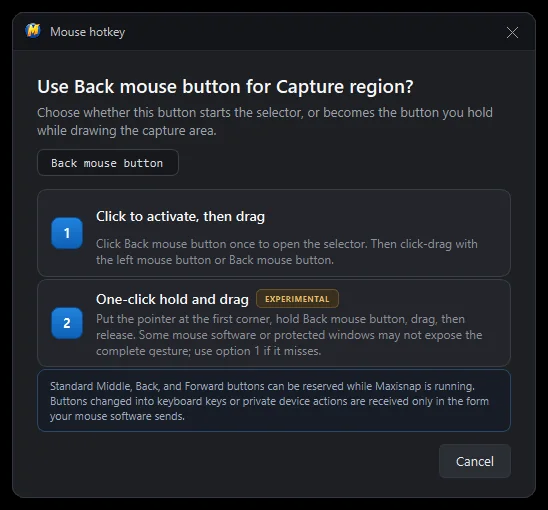
Any global action can be bound to the Middle, Back, or Forward mouse button instead of, or as well as, a keyboard shortcut. Buttons that mouse software exposes as extra numbered buttons work too. Left and right stay yours.
Click to activate, then drag
Press the button once to open the selector, then drag the region with the left button or the same mouse button. The safe default, and it works with every mouse driver.
One-click hold and drag
Hold the button at the first corner, drag, and release. One continuous gesture from button-down to capture. Marked experimental in Settings because some mouse software and protected windows do not expose the full gesture.
One key per tool
Once a capture opens, every tool has a single-key shortcut and every action has a combination. Hold Shift while drawing for straight lines and perfect squares or circles, Ctrl for filled shapes, and Alt to draw from the centre. These editor shortcuts remap too.
Tools
- AArrow
- Shift+AArrow + text
- PPen
- RRectangle
- LLine
- EEllipse
- MHighlighter
- TText
- Shift+TBold text
- BBlur
- CCrop
- NNumbering
File
- Ctrl+SSave
- Ctrl+UUpload
- Ctrl+CCopy the image
- Ctrl+VPaste text as an annotation
- Ctrl+Shift+MCopy the share link as Markdown
Editing
- Ctrl+ZUndo (50 levels)
- Ctrl+YRedo
- DeleteDelete the selected annotation
- Ctrl+DDuplicate the selected annotation
- Arrow keysNudge by 1 px, Shift for 10 px
- EscDeselect
View and window
- Ctrl+scrollZoom at the cursor
- Ctrl+0Fit to window
- Ctrl+1100% zoom
- Ctrl+Shift+PPin the editor on top
Change any shortcut in three clicks
- 01
Open the Hotkeys page
Right-click the tray icon, choose Settings, then Hotkeys. The search box filters by action name or key, so typing "scroll" or "F12" jumps straight to the row you want.
- 02
Click the shortcut you want to change
The key field waits for your input. Press the keys you want, or click a mouse button to bind it.
- 03
Let Maxisnap check it
Global hotkeys need Ctrl, Alt, Shift, or Win plus one key. If Windows reports that another app already owns the combination, Maxisnap says so and suggests two alternatives; you can also keep your choice and let Maxisnap try to claim it. Changes save as you set them, and a Reset button restores any default.
Hotkey questions
How do I change Maxisnap's default hotkey?
Right-click the tray icon, open Settings → Hotkeys, click the key field next to the action, and press the new combination. It saves immediately, no restart needed.
What if another app uses the same hotkey?
Maxisnap checks with Windows when it registers each hotkey at startup and when you save. If the combination is taken, you see a warning with two suggested alternatives. Whichever app registers a hotkey first wins, so if a conflict appears later you can re-register in Maxisnap or change the other app.
Can I set Print Screen as the capture key?
Global hotkeys need a modifier plus a key, so use a combination such as Ctrl+PrtSc. Windows can also reserve the bare Print Screen key for its own snipping; that setting lives in Windows Settings → Accessibility → Keyboard.
Can a mouse button start a capture?
Yes. Bind the Middle, Back, or Forward button to any global action. Choose click-to-activate for the safest behaviour, or the one-gesture hold-and-drag mode for region captures.
Is the hotkey feature available on macOS?
Not currently. Maxisnap is available for Windows 10 and Windows 11, and a macOS build is not currently available.
Make the hotkeys yours
Download Maxisnap, remap anything that clashes with your other apps, and start capturing without leaving the keyboard.
Download free for Windows