Everything You Need to Capture, Annotate, and Share
Built for developers, designers, and support teams who take screenshots every day. No bloat, no Electron wrapper, no compromises.
Four fast ways to grab your screen
Every capture mode is one hotkey away. Multi-monitor and high-DPI displays work out of the box.
Region Capture
Select any rectangular area of your screen. Pixel-precise crosshair with magnifier. Press Ctrl+Alt+5 and drag.
Fullscreen Capture
Grab the entire screen of any connected monitor with a single keystroke. Press Ctrl+Alt+6 to capture instantly.
Auto-Upload
Capture and upload in one action. Press Ctrl+Alt+7 to capture a region, upload it, and produce an instant shareable link on your clipboard — no save dialog, no manual upload step.
Scrolling Capture
Press Ctrl+Alt+8, select a vertically scrolling browser or application pane, then scroll manually or let automatic mode advance it. The shortcut is fully configurable.
11 tools to mark up any screenshot
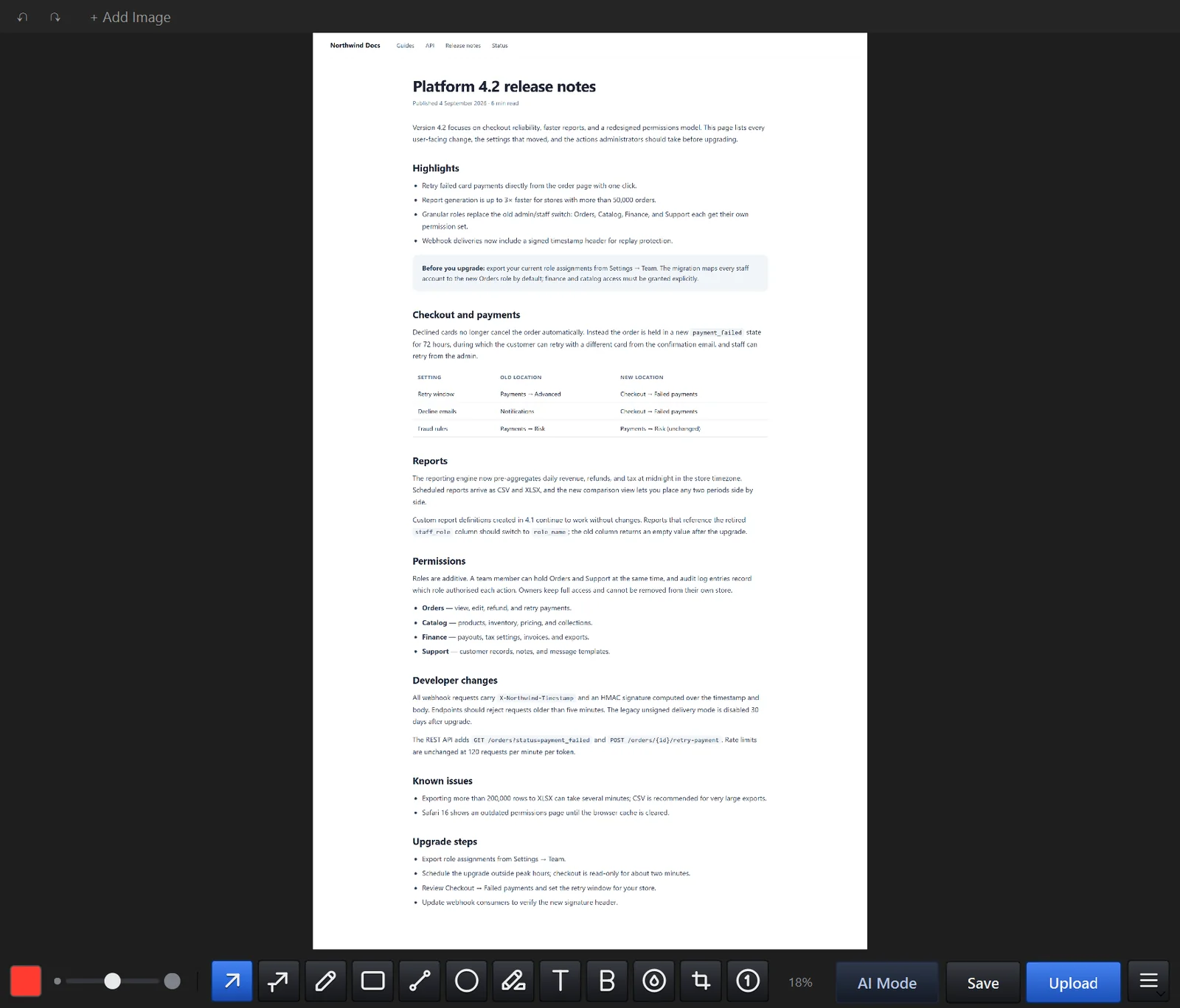
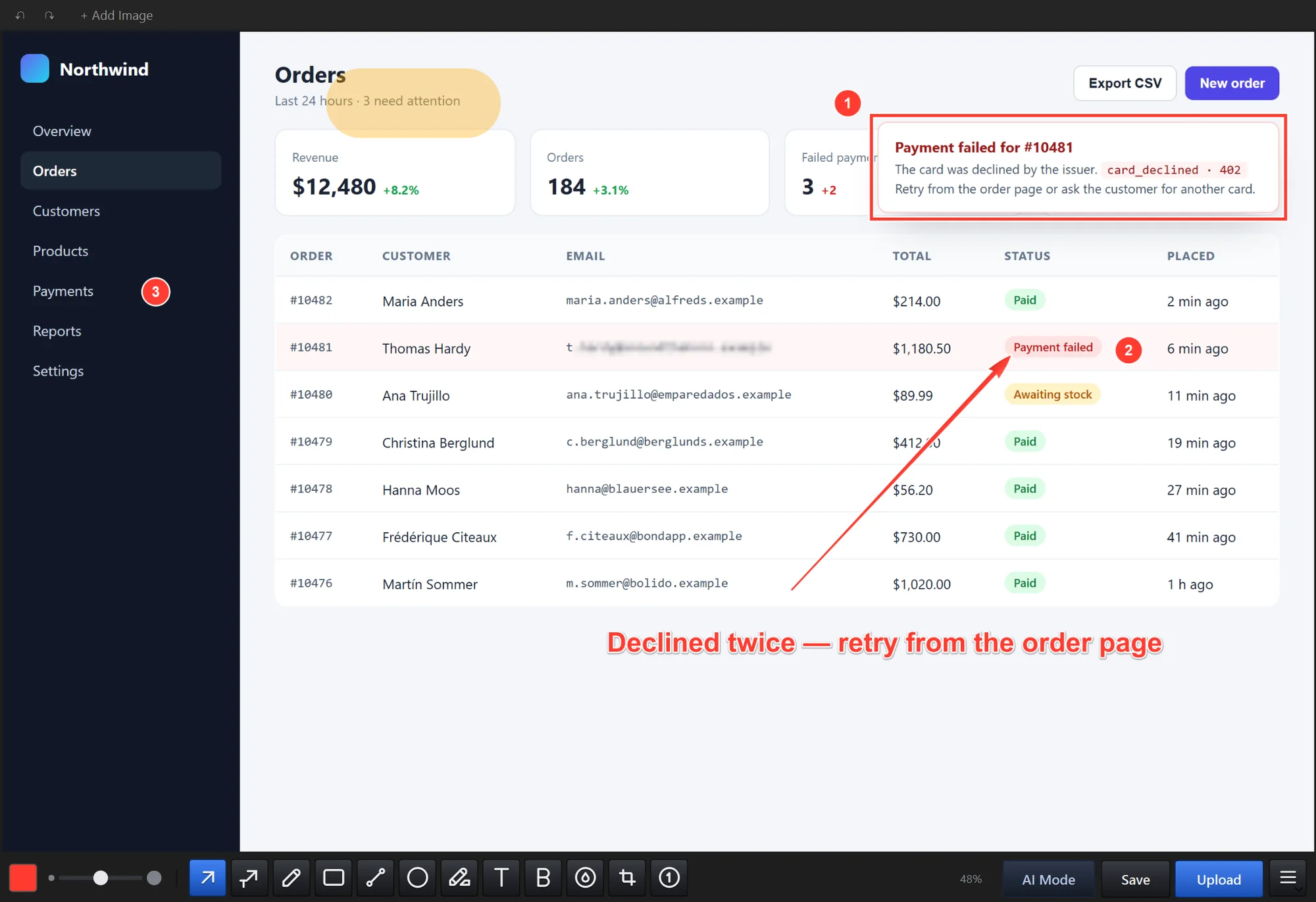
Draw arrows, highlight text, blur sensitive data, add numbered callouts. Every tool is designed for speed with keyboard shortcuts and smart defaults.
Arrow
Point to specific elements with clean directional arrows. Adjustable width and color.
Pen
Freehand drawing for quick annotations. Smooth anti-aliased strokes at any width.
Rectangle
Draw outlined or filled rectangles to highlight areas of the screen.
Line
Straight lines for connecting elements or underlining important content.
Ellipse
Circle or oval shapes to call attention to buttons, icons, or interface elements.
Highlighter
Semi-transparent color overlay to highlight text passages or UI regions.
Text
Add labels and descriptions directly onto screenshots. Resizable with font size control.
Bold Text
Larger, bolder text for headings and callouts that demand attention.
Blur
Pixelate sensitive information: emails, passwords, personal data. Drag to blur any area.
Crop
Trim your screenshot to the exact dimensions you need before saving or uploading.
Numbering
Add sequential numbered markers to create step-by-step visual guides.
A real editor, not just a paint canvas
Select, move, and resize any annotation after placing it. Undo up to 50 levels. Zoom in for pixel-perfect placement.
Selection
Click any annotation to select, move, or resize it.
50-Level Undo
Undo and redo up to 50 actions. Experiment freely.
Zoom
Zoom in and out for pixel-level precision on detailed work.
Color Picker
Choose from presets or pick any color with the eyedropper.
Export a screenshot your AI coding assistant can actually read
Capture a bug, dialog, or design and export a one-click AI-optimized copy — right-sized so Claude Code, Codex CLI, or Gemini CLI reads it clearly without burning tokens on 4K pixels the model only downsamples.
| Export | What it's for | Detail |
|---|---|---|
| AI-optimized image | Pasting a screenshot into an AI coding CLI | 1600 px max width, configurable |
| AI-optimized MP4 | Sharing a screen recording with AI tools | ~1280 px, 24 fps, mono |
| Blur before export | Redacting secrets before the model sees them | Destructive, unrecoverable from the file |
Your screenshots, your infrastructure
Use Maxisnap Cloud, or add Studio for SFTP, FTP, S3-compatible, and HTTP destinations you configure.
SFTP
Upload directly to any server you control via SSH File Transfer Protocol. Use your existing hosting, VPS, or NAS.
FTP / FTPS
Classic FTP with optional TLS encryption. Compatible with virtually every web host on the planet.
S3-Compatible
AWS S3, Cloudflare R2, MinIO, Backblaze B2 — any S3-compatible storage works. Set your bucket, region, and credentials.
HTTP POST
Send screenshots to any custom API endpoint. Build your own screenshot workflow with webhooks and automation.
Maxisnap Cloud
One-click upload to maxisnap.com. Get a shareable link instantly. No server setup required.
Clipboard & Disk
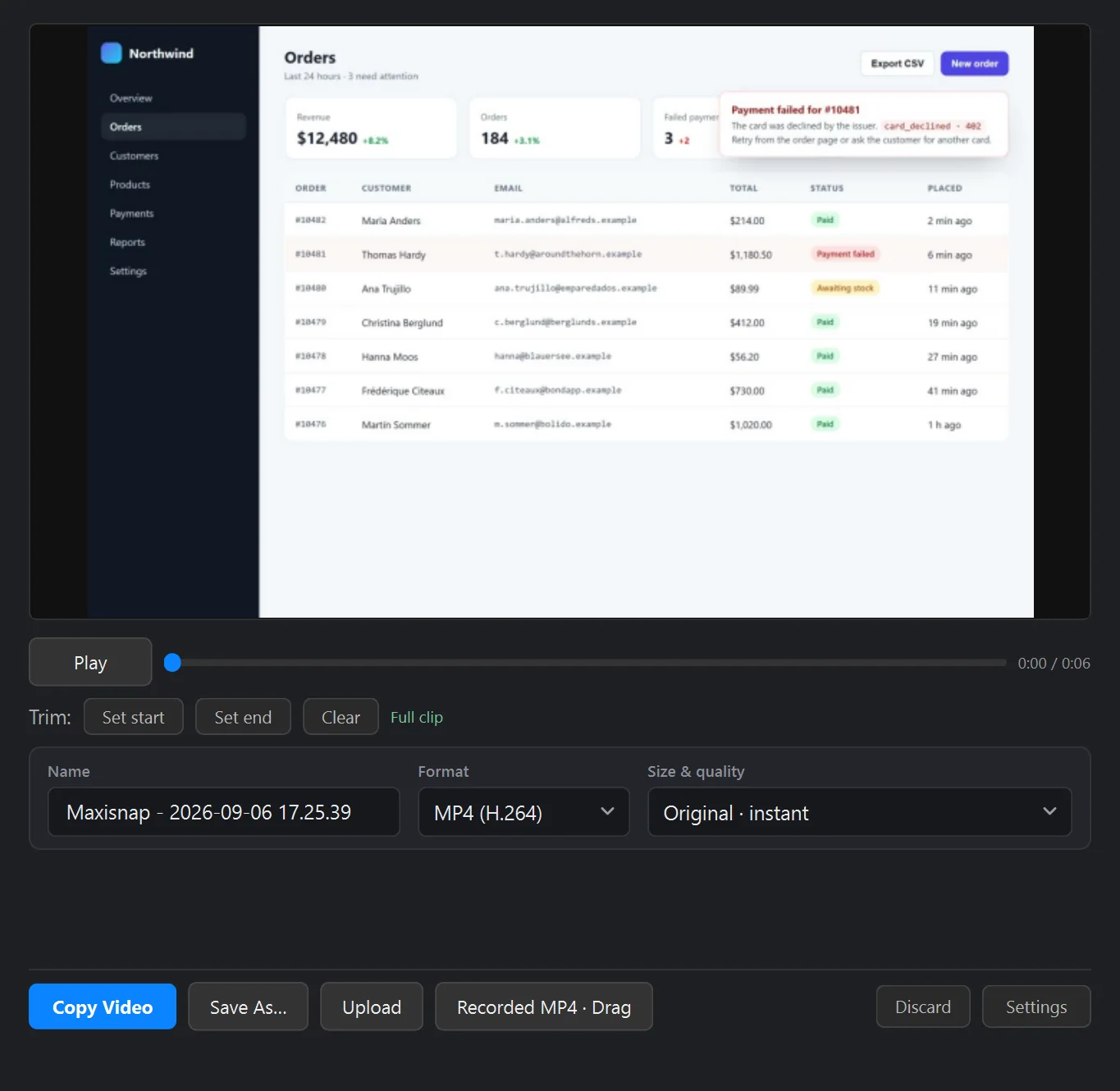
Copy screenshots to your clipboard or save to any local folder. Always available, no account needed.
Lives quietly in your system tray
Maxisnap stays out of your way until you need it. Native Windows integration, dark UI, and zero background noise.
System Tray
Runs silently in your notification area. Right-click for quick capture, settings, and recent uploads.
Global Hotkeys
Configurable capture and recording shortcuts that work from any application, any time.
Dark Editor UI
The screenshot editor uses a dark interface to keep focus on your image, not the chrome around it.
Lightweight
One 109 MB Windows installer with capture, annotation, scrolling, and recording components.
Notifications
Discrete toast notifications confirm captures and uploads. Click to open the uploaded link.
Windows Native
Built for 64-bit Windows 10 (1903+) and Windows 11, with high-DPI support, taskbar integration, and native dialogs.
Published product facts
Versioned facts you can verify on the download and release pages.
Download free, upgrade when you need to
Every capture and annotation tool is free. Upgrade to Pro for unlimited Maxisnap Cloud, or add Studio for configurable server uploads.