

Welcome to Maxisnap
You just installed v2.5.2. Start with one capture-and-copy, then read on when you want recording, scrolling capture, OCR, or sharing.
The three first things to do
- 1
Take your first capture
Press
Ctrl+Alt+5, drag a region, release. Or hover a window and click without dragging to capture the whole window. The editor opens with the image on your clipboard already. - 2
Pin the tray icon
Open the Windows taskbar overflow (the small up-arrow next to the clock) and drag the Maxisnap icon into the always-visible tray. Right-click it for every capture mode, OCR, and Settings.
- 3
Decide where uploads go
Open Settings → Upload. Maxisnap Cloud works with a free account. With the Studio add-on you can use your own SFTP, S3, FTP, HTTP, or self-hosted destination instead. Capturing, editing, copying, and saving never need an account.
The ten features people use most
You can stop after the three steps above and have a screenshot tool that works. These are the features that make the difference once you have used it for a week.
1. Region capture, and click-to-capture a window
The everyday shortcut is Ctrl+Alt+5. The screen freezes, a crosshair appears, and you drag a rectangle. Hover a window instead and it lights up: click without dragging to capture the whole window, or hold Alt to pick a single pane inside it, such as a browser's address bar or a sidebar. Because the screen is frozen first, open menus and tooltips are capturable.
2. The annotation editor
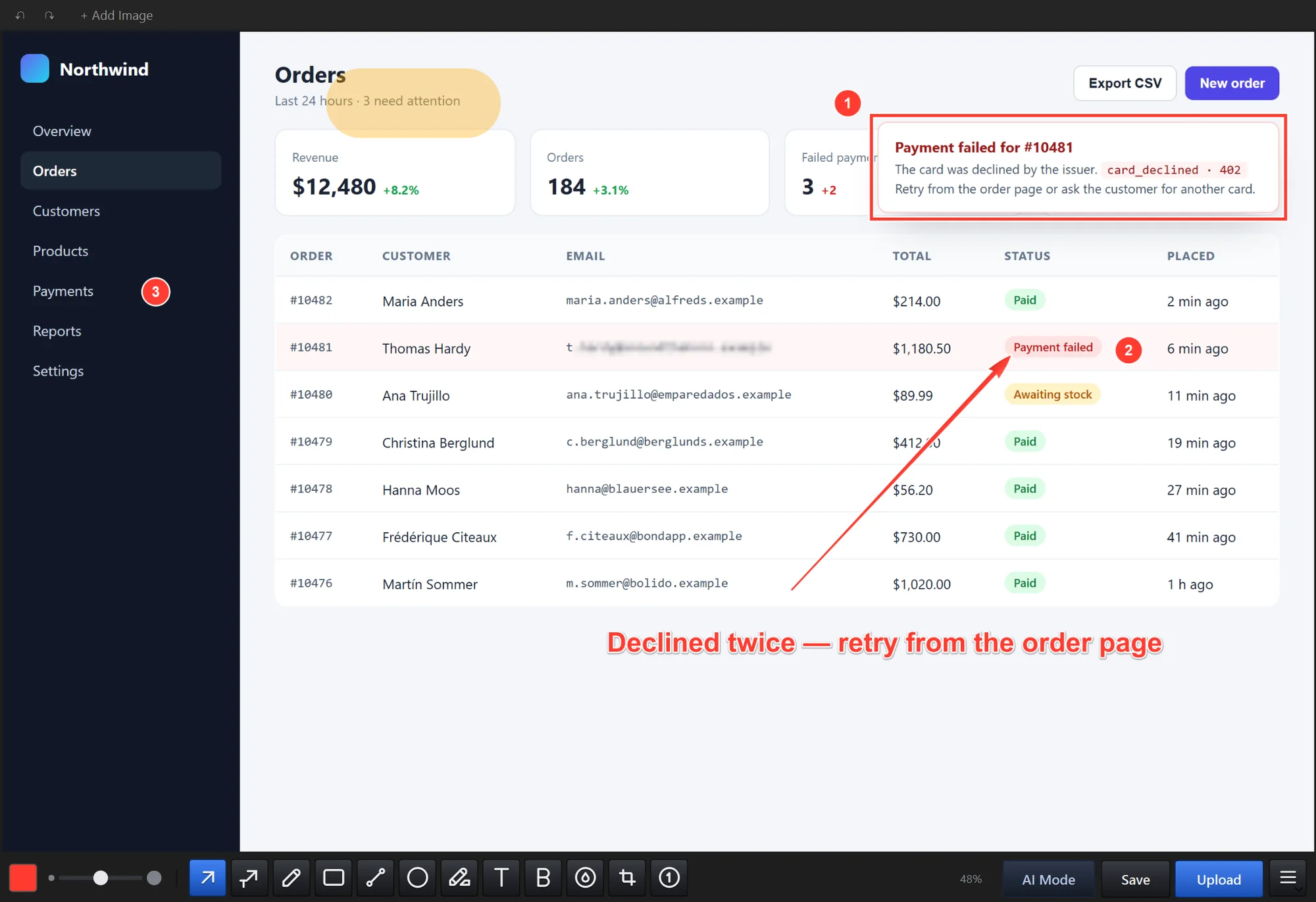
The toolbar runs along the bottom of the editor. Twelve tools, one key each: arrow, arrow with text, pen, rectangle, line, ellipse, highlighter, text, bold text, blur, crop, and numbering. Every annotation stays an object until you save, so click it to move it, drag a handle to resize it, change its colour or size, or press Ctrl+Z up to 50 times.

- Arrow. Drag from where the arrow starts to what it points at. Hold Shift for a straight 45-degree arrow.
- Numbering. Each click drops the next number. Delete one and the rest renumber.
- Blur. Drag a rectangle over an area to reduce its visible detail, including earlier annotations. The effect is included in the exported file, but it is not secure redaction. Keep secrets outside the capture or crop them out.
- Text. Click, type, and drag the corner handle to scale it. Double-click to edit later.
3. Scrolling capture
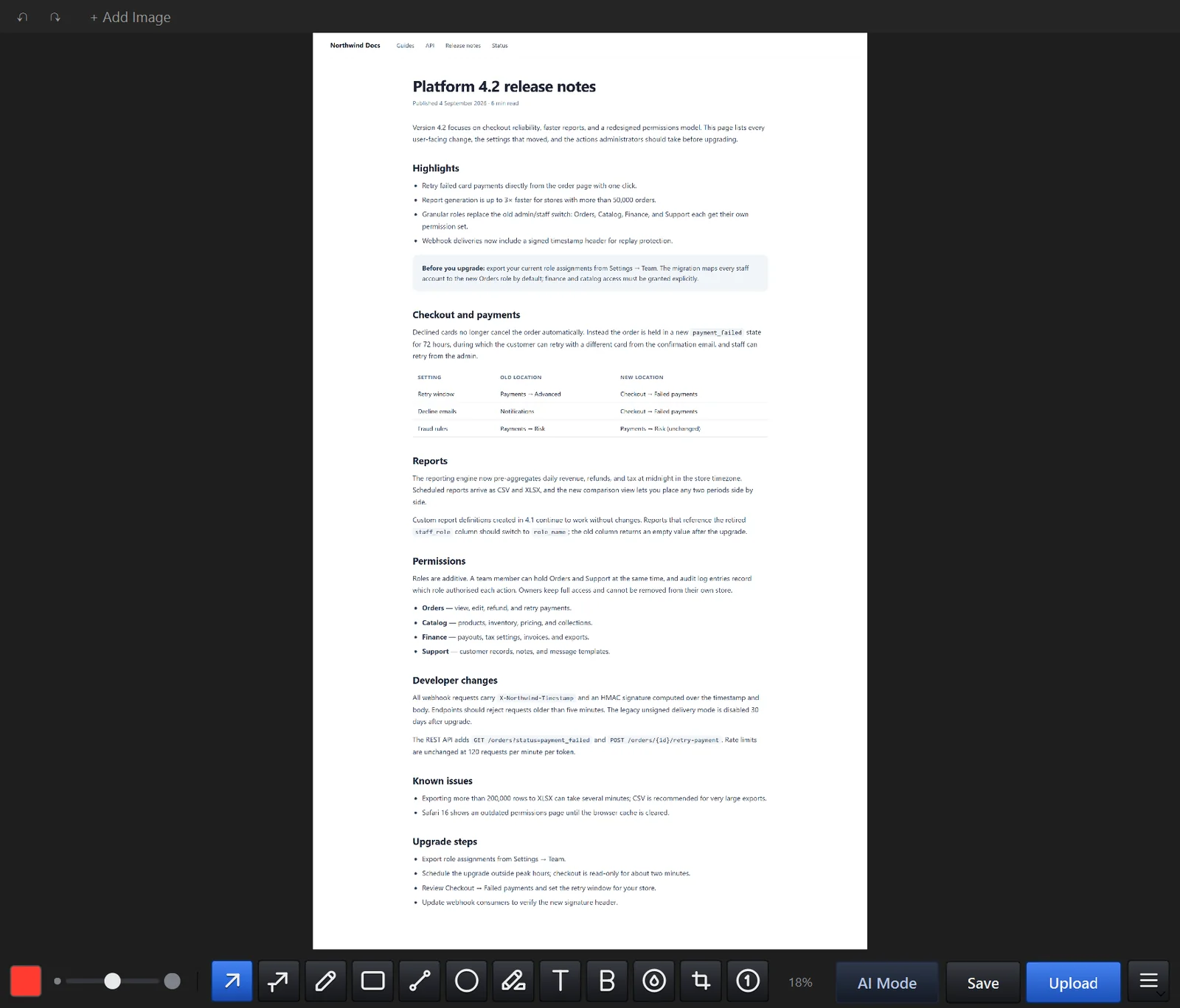
Press Ctrl+Alt+8, select the pane that scrolls, and scroll it. Or switch to automatic mode in Settings and Maxisnap scrolls it for you. Press the hotkey again, click Stop, or press Escape, and the stitched image opens in the editor. It works on web pages and on desktop panes such as chats and settings windows.
4. Screen recording
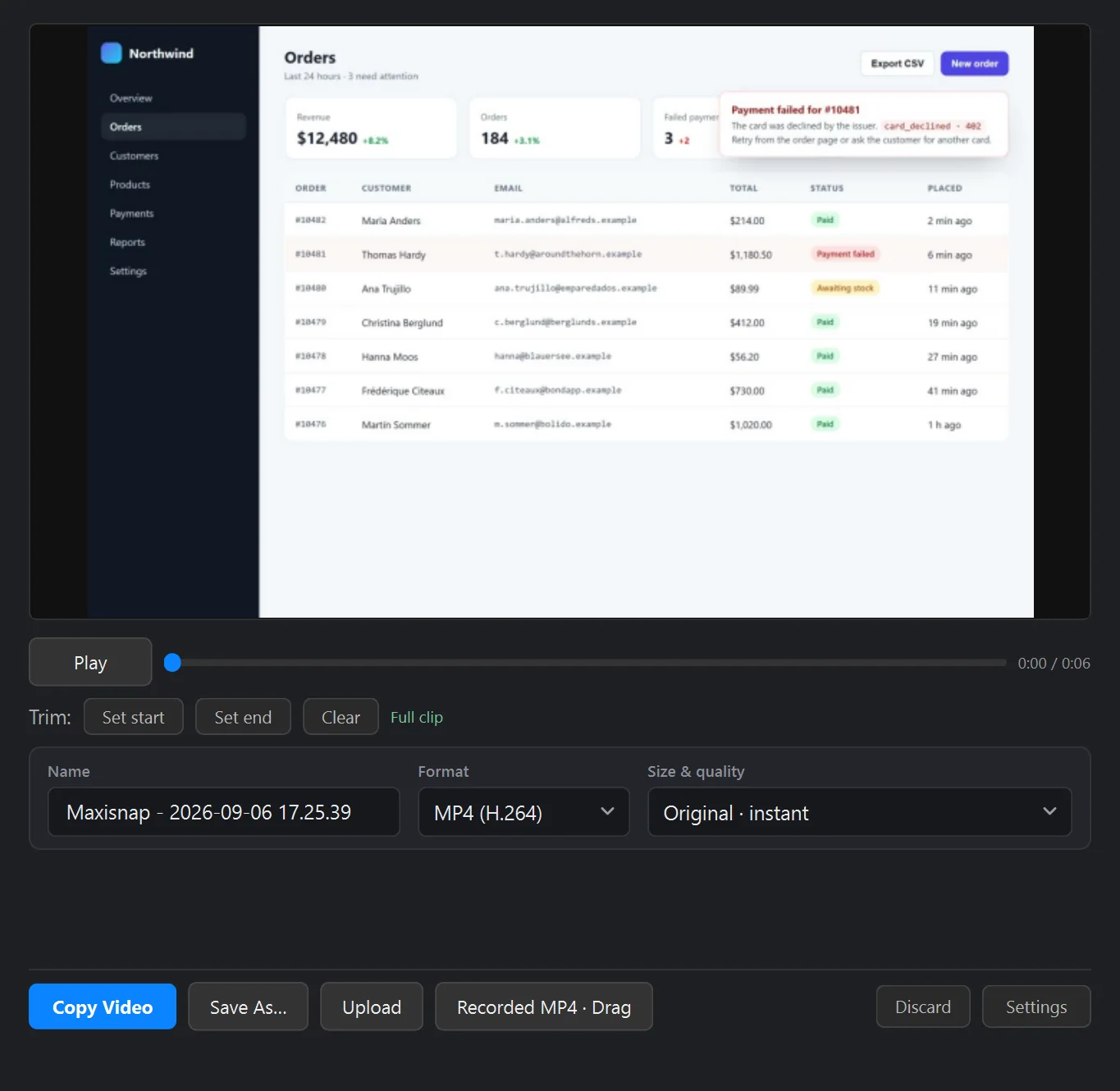
Ctrl+Alt+3 records a region you draw; Ctrl+Alt+4 records the whole screen under your cursor. System audio and your microphone are on by default and need no extra driver. Press the hotkey again to stop, and a result window opens with the clip already on your clipboard as a file: play it, trim it, and export MP4, GIF, WebM, or an AI-optimized MP4.
5. Copy to clipboard, save, or upload
In the editor, Ctrl+C copies the annotated image, Ctrl+S saves it as PNG or JPEG in your save folder, and Ctrl+U uploads it to the active destination and copies the link. Files are named after the app and window you captured, so a folder of captures stays searchable.
6. Share a link in one hotkey
Ctrl+Alt+7 captures a region and uploads it straight away. The link is on your clipboard when the editor closes. A free Maxisnap account keeps up to 50 active captures and 500 MB of cloud storage (100 MB of it video); Pro adds 10 GB of storage, videos up to 1 GB, private links, view analytics, and ad-free share pages. Press Ctrl+Shift+M to copy the link as Markdown.
7. Copy text out of a screenshot
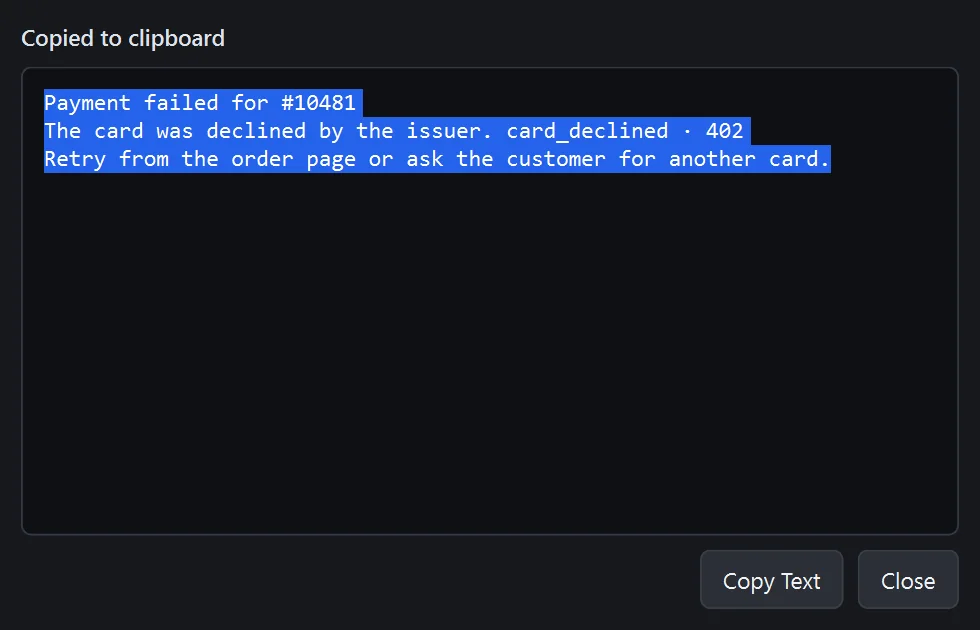
Right-click the tray icon and choose Capture text, then select a region: the recognised text lands on your clipboard. Inside the editor, the menu offers Copy Text from Image for the current capture. Recognition runs on your PC with the OCR engine built into Windows.
8. AI Mode
Toggle AI Mode on the toolbar and every copy, save, and upload produces a right-sized copy for Claude Code, Codex CLI, Gemini CLI, or a chat assistant: 1600 px wide by default, in the smallest legible format. Crop secrets out before export and inspect the resulting image. The AI coding page has the per-tool steps.
9. Pin a capture on top
From the editor menu, Pin to Desktop floats the current capture above every other window. Drag it anywhere, resize it with the mouse wheel, right-click to set the opacity, and press Escape to close it. Pin as many as you need while you work from a reference.
10. Capture previous area, open from clipboard, open latest
Capture previous area in the tray menu repeats your last rectangle exactly, which is ideal for before-and-after shots. Ctrl+Alt+1 opens whatever image is on your clipboard in the editor, and Ctrl+Alt+0 opens the newest file in your save folder.
Frequently asked questions
Where are my screenshots saved?
By default in Pictures\Maxisnap Images, and recordings in Videos. Change either folder in Settings → Preferences and Settings → Video. Automatic recovery copies of unsaved work go to a separate Pictures\Maxisnap Auto Recovery folder with a retention period you choose.
Can I change the keyboard shortcuts?
Yes. Settings → Hotkeys lists every global hotkey and every editor shortcut with a search box. Click a field, press the new keys, and Maxisnap saves it and warns you if Windows reports a conflict. You can also bind the Middle, Back, or Forward mouse button to a capture. The hotkey reference has the full list.
Is the blur destructive?
Blur is included in the exported image, but blurred text may still be inferred from its remaining detail. Keep passwords and tokens outside the capture or crop them out. For content you cannot crop, use a fully opaque redaction tool in an editor that supports it, then inspect the exported file.
Where does Maxisnap Cloud upload data go?
To Cloudflare R2 storage on our Cloudflare account, served through Cloudflare's network. Nothing is uploaded unless you upload it. The full detail is in the Privacy Policy.
Does Maxisnap send usage statistics?
Anonymous usage statistics are on by default and can be switched off in Settings → Privacy, which also has Show my data and Delete all data buttons. They never include screenshot contents, filenames, or clipboard text.
How do I report a bug?
Open Settings → About → Report a bug. The form can attach a screenshot and redacted diagnostic data, and gives you a reference ID. The bug-report guide covers what to include.
Next step
- Take a few captures with the keyboard shortcut and build the muscle memory.
- If you send screenshots to clients or teammates and want more cloud storage, private links, and view analytics, Pro is $18 a year.
- If you want captures on your own server or a branded dashboard on your domain, Studio is $29 once.
- The Help Center has the shortcut list, a settings tour, and the bug-report process.